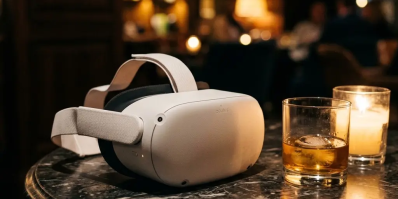
Just got a Meta Quest 3 and ready to dive into VR porn? You're in the right place. This is the most detailed, step-by-step guide on the internet — from unboxing to your first jaw-dropping 8K experience in under 15 minutes.
The Quest 3 is currently the world's #1 headset for VR porn thanks to its razor-sharp pancake lenses, fully standalone operation (no PC required), color passthrough Mixed Reality, and the richest app ecosystem available.
Let's get started.
📦 Part 1: Unboxing & Initial Setup
1.1. What's in the Box
- Meta Quest 3 headset
- 2x Touch Plus Controllers
- USB-C charging cable
- Facial interface (foam cushion)
- Rear battery cushion
1.2. Charge It First
Plug in via USB-C and wait until the LED turns solid green (roughly 2 hours). A full charge gives you about 2–2.5 hours of continuous use.
1.3. Download the Meta Horizon App
- On your phone, download Meta Horizon (iOS / Android)
- Sign in or create a Meta account
- Turn on Bluetooth and pair with your Quest 3
- Follow the in-app instructions to complete initial setup
1.4. Connect to Wi-Fi (Important!)
- Connect to your 5GHz band (NOT 2.4GHz) — this is critical for lag-free 8K streaming
- Ideally use a Wi-Fi 6 or 6E router
- Keep the router in the same room as your VR area if possible
1.5. Set Up Guardian (Safety Boundary)
- When you first put on the headset, Quest 3 will ask you to draw your room boundary
- For VR porn: choose "Stationary Boundary" instead of full room-scale — since you'll be sitting or lying down
👓 Part 2: Calibrate Your Headset for the Sharpest Image
This is the step 90% of beginners skip — and it's the difference between a "meh" and "HOLY SHIT" experience:
2.1. Adjust IPD (Inter-Pupillary Distance)
- Quest 3 has a continuous IPD wheel (58–71mm) — turn the small wheel on the bottom of the headset
- Look at a small line of text in the menu and slowly turn the wheel until it's perfectly sharp in both eyes
- If you don't know your IPD: measure it with the "EyeMeasure" app on iPhone, or ask your optometrist
2.2. Adjust the Head Strap
- Loosen everything first, place the headset on your face, then gradually tighten both sides and the top equally
- The headset should rest on your forehead and cheekbones — NOT pressing down on your nose
- Pro tip: Buy an Elite Strap ($60) or third-party halo strap ($20–30) — they're literally 10x more comfortable than the stock strap
2.3. Find the Sweet Spot
- Use both hands to gently slide the headset up, down, left, and right on your face
- When all four corners of the display are equally sharp — that's the sweet spot
- Tighten the strap to lock that position in place
📱 Part 3: Install a VR Porn Player
There are 3 main methods to watch VR porn on Quest 3. Choose the one that suits you best:
🏆 Method 1: DeoVR (Recommended — Best Overall)
DeoVR is the world's most popular VR porn player — 100% free and available directly on the Quest Store.
How to install:
- Put on your Quest 3
- Open the Meta Quest Store (shopping bag icon)
- Search for "DeoVR"
- Tap "Get" (free) → Wait for installation to complete
- Open DeoVR from your App Library
How to watch via the built-in browser:
- Inside DeoVR, tap the browser icon
- Type in the URL of a VR porn website:
- 🔥 xNight.net — 48,000+ VR videos from 380+ studios, updated daily
- 🔥 xMonter.com — Curated high-quality VR porn collection
- 🌐 VRPorn.com — One of the largest VR porn platforms
- Select a video and press play
- Tap the VR/goggles icon on the video player to switch to immersive mode
- DeoVR will auto-detect the format (180° SBS). If it doesn't, manually set it in Player Settings → "180° SBS"
Optimal DeoVR settings for best quality:
- Enable HEVC Decoding: Settings → Player → Enable HEVC — unlocks H.265 playback for dramatically better quality
- Enable AV1: If available — AV1 is 30% more efficient than HEVC at the same quality
- Frame Interpolation: Turn on to make 30fps videos appear smoother
- Auto Frame Rate: Enable to match the video's native refresh rate
Method 2: SKYBOX VR Player (Best for Local Files)
The best option if you download videos to your PC and stream them over your home network.
- Install SKYBOX from the Quest Store (free)
- On your PC: Install the SKYBOX PC Client (download from skybox.xyz)
- Make sure your PC and Quest are on the same Wi-Fi network
- In SKYBOX on Quest: go to the "Network" tab → Your PC should appear
- Browse and play videos directly from your PC — zero compression, full quality
Naming tip: Add _180_LR or _180x180_3dh to your filenames so SKYBOX auto-detects the correct VR format.
Method 3: Quest Browser (Simplest — No App Needed)
No installation required at all!
- Open the Meta Quest Browser (globe icon)
- Navigate to xnight.net or xmonter.com
- Pick a video and press play
- Tap the "VR" icon on the player to enter full VR mode
⚠️ Note: Browser quality is typically lower than DeoVR due to codec limitations. We strongly recommend DeoVR for the best experience.
🔥 Part 4: Passthrough — Quest 3's Killer Feature
Passthrough is Quest 3's most mind-blowing feature for VR porn: the performer appears right inside your actual room using the headset's see-through cameras.

How to use Passthrough in DeoVR:
- Search for videos tagged "Passthrough" — browse Passthrough videos on xNight
- Play the video in DeoVR
- Tap the "AI Passthrough" button in the Player Settings panel (right side)
- DeoVR uses AI to remove the video background, keeping only the performer
- The performer now appears standing right in your room via the passthrough cameras
Tips for best Passthrough results:
- Keep your room well-lit (at least 50 lux — enough to comfortably read a book) for the best camera performance
- Works best with videos that have a clear subject against a simple background
- You can fine-tune the chroma key and transparency in Player Settings → Color/Chroma Key
- Quick toggle: double-tap the side of your Quest 3 to switch system passthrough on/off
Recommended Passthrough content to try first:
- 🎬 Dixie Lynn Passthrough 6K — 5,900+ views
- 🎬 Ivi Rein 8K Passthrough Director's Cut — 5,600+ views
- 🎬 Dolly Dyson 8K Orgasm Compilation — 4,900+ views
📥 Part 5: Download Videos to Quest 3 (Maximum Quality)
Streaming is convenient, but downloading + playing locally delivers the absolute best quality — no compression, no buffering, no internet dependency.
Option A: Transfer from PC via USB-C
- Download 8K videos from xNight's 8K collection or xMonter to your PC
- Connect your Quest 3 to your PC using a USB-C data cable (not a charging-only cable)
- Put on the headset → Tap "Allow" when the file access prompt appears
- On your PC: Open This PC → Quest 3 → Internal shared storage → Movies
- Copy your video files into the Movies folder
- Open DeoVR or SKYBOX → Go to the "Local" tab → Select your video
Option B: USB-C Flash Drive (No PC Needed)
- Copy videos onto a USB-C flash drive using any computer
- Plug the drive directly into Quest 3's USB-C port
- Open SKYBOX → It will auto-detect the external drive → Select your video
Option C: Stream Over Local Network (DLNA/SMB)
- Keep videos stored on your PC or NAS
- Open SKYBOX on Quest 3 → Go to the "Network" tab
- Find your PC/NAS and browse your folders
- Play directly — no copying needed
Network requirements: 5GHz Wi-Fi with at least 50 Mbps sustained bandwidth for smooth 8K playback.
⚙️ Part 6: Optimize for Maximum Visual Quality
The Quest 3 supports up to 8192×4096 @ 60FPS. Here's how different resolutions compare:
| Quality Tier | Resolution | File Size (1 hour) | Experience |
|---|---|---|---|
| Standard | 4K (3840×2160) | ~3–5 GB | Good — slightly soft in details |
| High | 5K (5120×2880) | ~5–8 GB | Very good — mostly sharp |
| Ultra | 6K (6144×3456) | ~8–12 GB | Excellent — near-perfect clarity |
| Maximum | 8K (8192×4096) | ~12–20 GB | Photorealistic. Mind-blowing. |
Recommended video settings:
- Codec: H.265 (HEVC) or AV1 — both far superior to H.264 at high resolutions
- Bitrate: 50–100 Mbps for optimal clarity
- Frame rate: 60 FPS (the sweet spot — smooth without overtaxing the decoder)
- Format: 180° SBS (Side by Side) — the industry standard for VR porn
- Audio: Binaural / Spatial Audio — creates a 3D soundscape that dramatically enhances immersion
Streaming vs. Download — Which is better?
| Streaming | Download | |
|---|---|---|
| Pros | Instant access, no storage used | Maximum quality, zero buffering |
| Cons | Quality depends on internet speed | Large files (12–20 GB per video) |
| Best for | Quick browsing, trying new content | Favorite scenes, best possible experience |
😌 Part 7: Viewing Positions & Angle Adjustment
Watching while seated:
- Sit comfortably in a chair or on a couch
- Start playing the video
- If the angle feels off: hold the Meta button (⊙) on the right controller to recenter your view
Watching while lying down (most popular!):
- Lie comfortably on your bed
- Start playing the video
- Hold the Meta button to recenter — the video will now display above you
- Fine-tune: in DeoVR, use Grab + Index Trigger to drag and rotate the video to the most comfortable angle
Tips:
- Prop a pillow under your head to keep the headset from sliding
- You don't need the controllers after pressing play — hand tracking works for basic controls
🔒 Part 8: Privacy & Security
This is the section nobody teaches you but is absolutely critical:
8.1. Lock Apps with a PIN
- Go to your App Library
- Find DeoVR (or any app you want to lock)
- Tap the three-dot menu (...) on the app icon
- Select "Lock"
- Set a 4-digit PIN
Every time someone tries to open the app, they'll need the PIN. No PIN = no access.
8.2. Enable Private Browsing
- In DeoVR's browser: enable "Private Mode" — no browsing history saved
- In Quest Browser: tap the incognito tab icon before navigating
8.3. Disable Casting (Critical!)
- IMPORTANT: Before every session, make sure you're not casting to a TV or phone
- Check: Quick Settings → Camera → Casting → Off
8.4. Turn Off App Sharing
- If you share your headset with family: Settings → Accounts → App Sharing → Disable
- Better yet: create separate user accounts for each person
8.5. Use a VPN
- Install a VPN on your router, or sideload one onto your Quest
- Encrypts your browsing data and bypasses regional restrictions
🧹 Part 9: Hygiene & Essential Accessories
Must-have accessories:
| Accessory | Price | Why You Need It |
|---|---|---|
| Silicone Face Cover | $10–15 | Sweat-proof, easy to wipe clean. Absolute must-buy! |
| Elite Strap / Halo Strap | $20–60 | 10x more comfortable than the stock strap |
| Rear Battery Pack | $30–50 | Balances the headset weight + extends battery life to 4+ hours |
| Silicone Nose Cover | $5–10 | Blocks light leaking in from the nose gap |
| In-ear Headphones | $15–30 | Private audio + much better spatial sound than the built-in speakers |
How to clean properly:
- Lenses: Use a dry microfiber cloth ONLY. NEVER use alcohol, wet wipes, or cleaning sprays — they permanently destroy the lens coating
- Silicone face cover: Wipe with antibacterial wipes after each session, or wash with mild soap and water
- Headset body: Wipe with a slightly damp soft cloth
- Storage: Keep in a cool, dry place. NEVER leave it in direct sunlight — sunlight can burn through the lenses and permanently damage the display
🌐 Part 10: The Best VR Porn Websites
Bookmark these in your DeoVR browser right now:
| Website | What Makes It Special | Highlights |
|---|---|---|
| xNight.net | 48,000+ videos from 380+ studios | 8K collection, Trending, Top performers |
| xMonter.com | Curated premium VR collection | High-quality videos, frequently updated |
| VRPorn.com | Largest VR porn platform | Exclusive studios, community reviews |
| SexLikeReal.com | Dedicated Quest Store app | AI features, passthrough content |
Recommended first videos to try:
- 🎬 Top Trending VR Videos — The most-watched scenes this week
- 🎬 8K VR Collection — The sharpest, most photorealistic content available
- 🎬 Premium VR Studios — VirtualRealPorn, VR Bangers, Czech VR, VRConk
- 🎬 Passthrough Videos — Quest 3's signature feature
❓ FAQ — Frequently Asked Questions
"Does Quest 3 need a PC?"
No. Quest 3 is fully standalone. A PC only helps if you want to play locally stored 8K files for maximum quality.
"Why does my video look blurry?"
Check three things: (1) Your IPD isn't calibrated correctly, (2) The video is only 4K — try 8K content instead, (3) The headset isn't positioned at the sweet spot on your face.
"What's the difference between 180° and 360°?"
180° SBS is better for VR porn — all pixels are concentrated in the front half (where you're looking), giving you much sharper image quality. 360° spreads pixels across the entire sphere, resulting in lower clarity per degree.
"How long should I watch before taking a break?"
Start with 20–30 minute sessions. If you feel dizzy or nauseous, stop immediately and focus on a stationary object in the real world. Gradually increase session length as you build tolerance.
"Can anyone else see what I'm watching?"
Not if you follow Part 8 above: (1) disable casting, (2) use Private Browsing, (3) lock apps with a PIN, (4) turn off App Sharing. Your Quest, your business.
"Quest 3 or Quest 3S — which should I buy?"
If budget matters, the Quest 3S ($299) gives you 90% of the experience. But the Quest 3's pancake lenses deliver noticeably sharper visuals, especially in the peripheral areas — well worth the upgrade if you can afford it.
🚀 You're Ready — Start Exploring
Quest 3 + DeoVR + 8K content = an experience nothing else can match. Your first step? Open DeoVR, head to xNight.net or xMonter.com, pick an 8K video, and prepare to have your mind blown.
Welcome to the future of entertainment. 🌟